Lesson 3 of 8
Open Terminal
Finding and opening Terminal for the very first time.
Terminal is an app that lets you type instructions directly to your Mac. You'll use it a handful of times in this course. After the initial setup, your AI coding CLI runs inside Terminal and you interact with it in plain English.
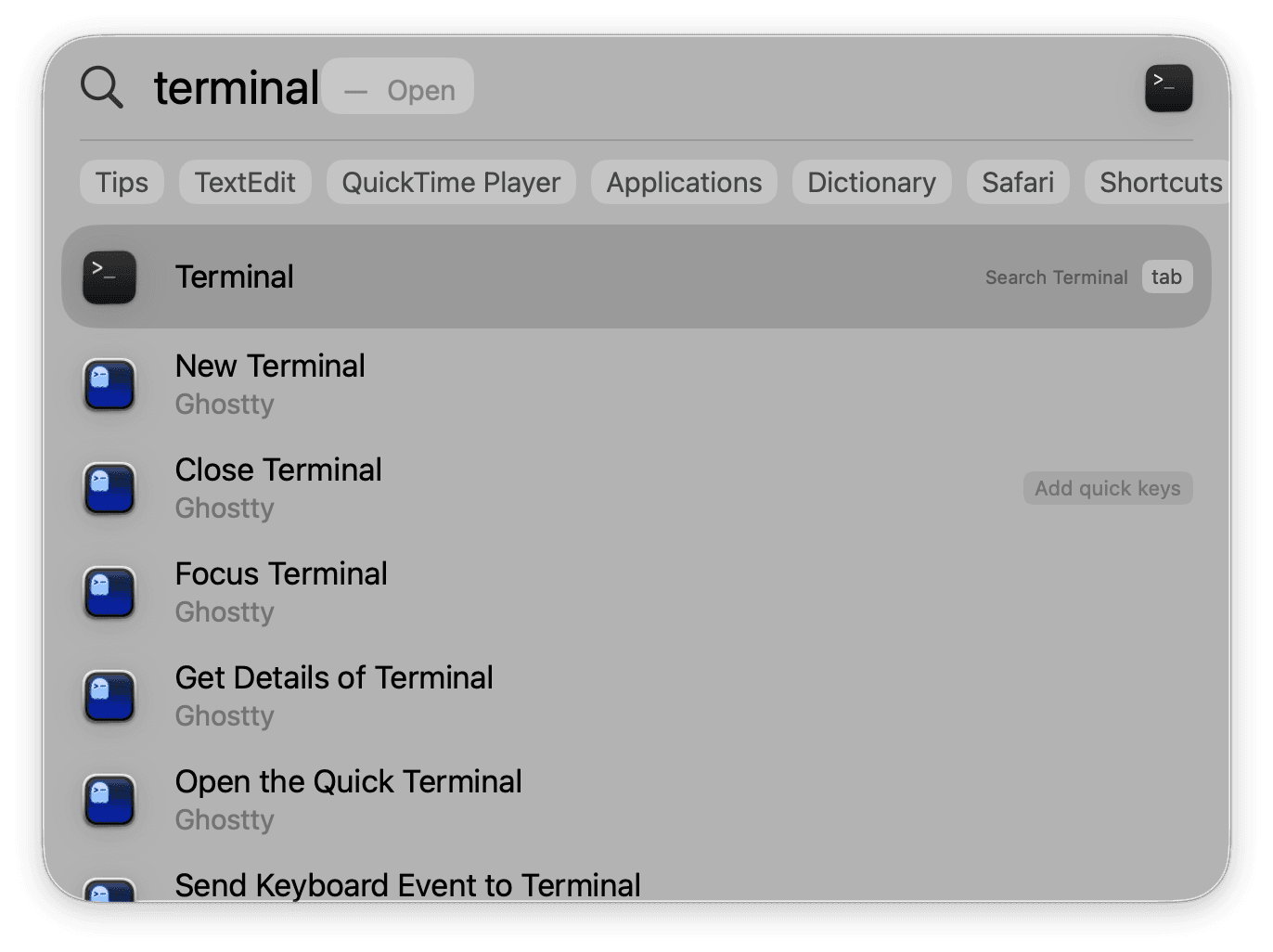
How to open Terminal
- Press Cmd + Space to open Spotlight Search
- Type Terminal
- Press Enter
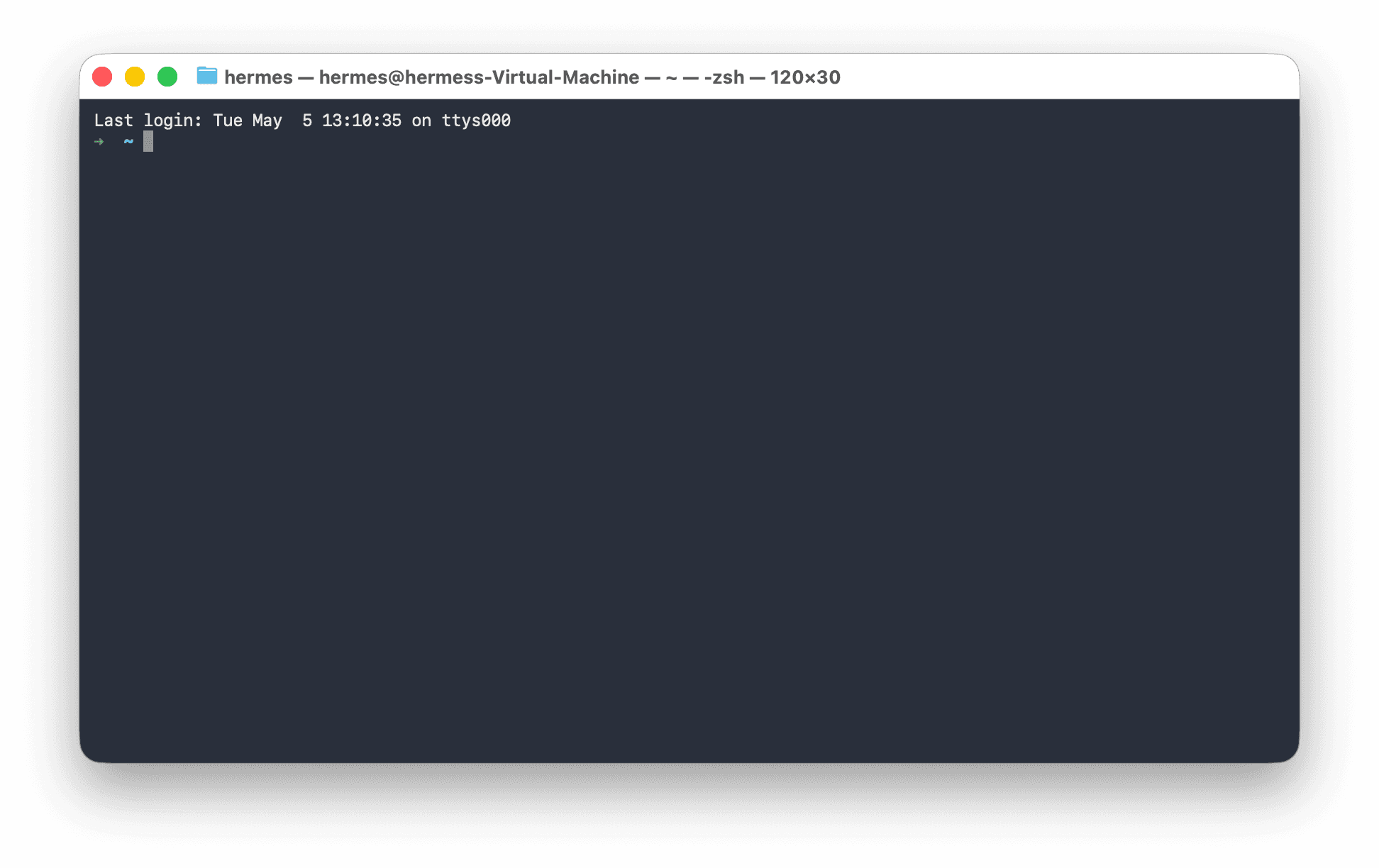
A window appears with a blinking cursor after a % prompt. This is where you'll type.
You do not need to understand Terminal. You are copying and pasting a few things into it and pressing Enter. That is all.
What you're looking at
The % symbol (or $ on older Macs) is called the prompt. It's Terminal waiting for your next instruction. The blinking cursor shows where your typing will appear.
Everything you type only happens when you press Enter. Until then, you can backspace and correct mistakes freely.
The only controls you need
| Action | How |
|---|---|
| Paste text | Cmd + V (same as everywhere else on your Mac) |
| Run a command | Press Enter |
| Cancel what's running | Ctrl + C |
| Clear the screen | Type clear and press Enter |
Cancel = Ctrl + C, not Cmd + C. Mac muscle memory makes this a common mistake. Cmd+C copies selected text (as usual). Ctrl+C stops whatever is currently running in Terminal.
Leave Terminal open
Keep this Terminal window open for the next lesson. You'll paste your first command into it momentarily.
You'll know you're ready when you can see a % (or $) prompt with a blinking cursor and the window is waiting for you to type.